
What is 3DS?
3D Secure (3DS) is an additional authentication layer used during online card transactions to verify that the person making a purchase is the legitimate cardholder. 3DS is merchant-initiated and can’t be triggered by other parties. The cardholder is then prompted to complete a challenge — typically entering a one-time passcode (OTP) sent by SMS, email, or another channel — before the transaction can proceed. 3DS challenges are not triggered on every transaction. Whether a challenge occurs depends on merchant rules, transaction risk signals, merchant configuration, and network requirements.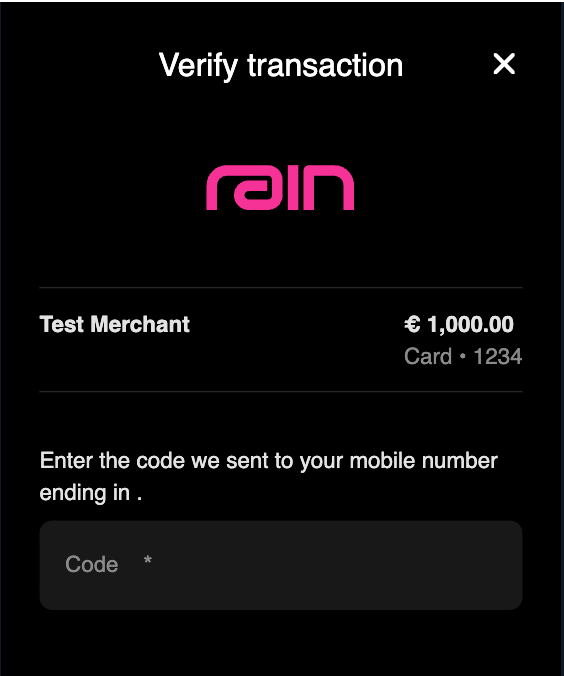
Example UI of a 3DS challenge
Anatomy of a 3DS challenge
A 3DS flow is made up of a few independent parts. Understanding them is the key to understanding your options below.- Choice screen — The screen the cardholder sees at checkout, where they choose which challenge method to continue with (for example, SMS or Email).
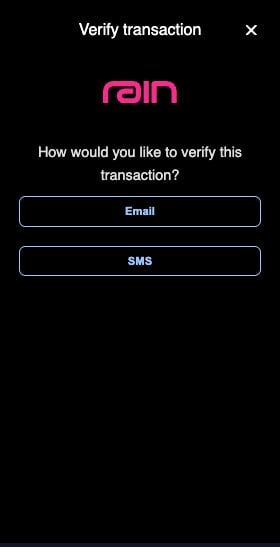
Choice screen — the cardholder picks a challenge method
- Authentication delivery — The OTP or approve/deny prompt sent to your user (for example, “Your card verification code is: XXXXXX”).
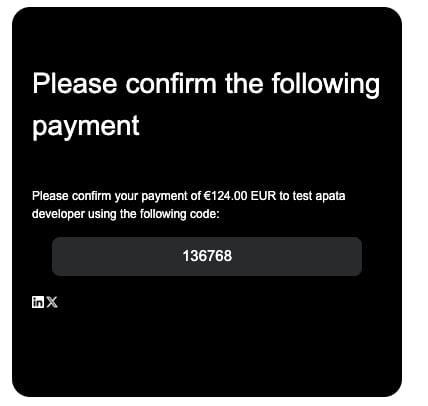
Authentication delivery/challenge method — example of an OTP delivered by email
- Challenge screen — The screen the cardholder sees once they have chosen their preferred challenge method (for example, if they selected SMS: “Enter the SMS OTP we sent to your mobile number ending in 1234”).
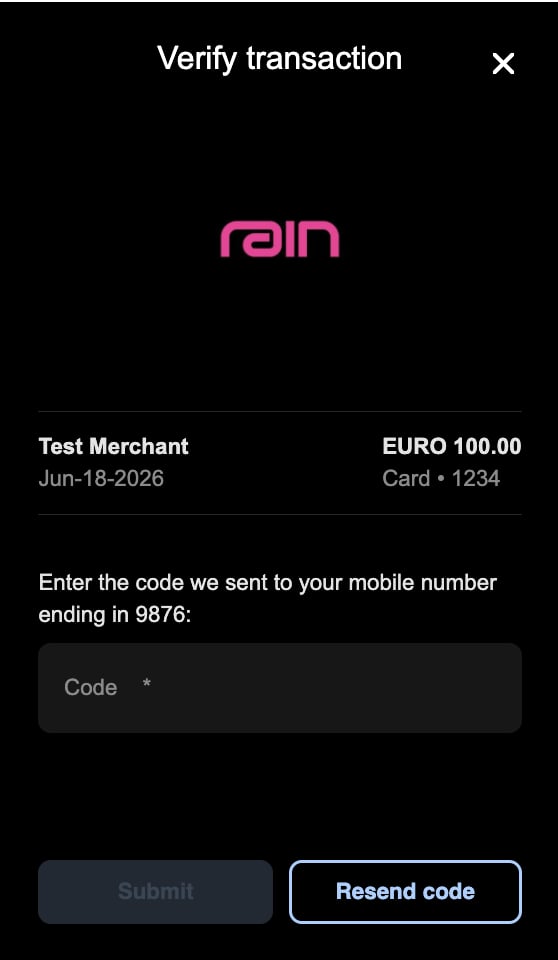
Challenge screen — the cardholder enters the OTP
Your three options
1. Hosted 3DS (default)
Rain’s Access Control Server (ACS) handles the entire challenge and delivers the OTP by SMS or email on your behalf. This is the default for every partner and requires no engineering work on your end. You cannot edit the authentication delivery/challenge method UIs (for example, the email template). Enterprise partners can customize the choice screen and challenge screen with their logo and colors. The challenge methods here are SMS and Email.2. Out-of-Band (OOB)
Out-of-Band (OOB) authentication verifies the cardholder through a separate channel — your app — instead of collecting an OTP within the checkout flow. Out-of-Band authentication has two methods — push notifications and biometric authentication. In both, there is no OTP: your app captures the cardholder’s approve/deny decision, and you report it back to Rain by calling Rain’s/3ds endpoint.
For push notifications, Rain sends your backend a webhook when a challenge is needed. Your app shows the cardholder a simple approve/deny prompt, and you report their decision through /3ds as described above. There is no OTP to deliver — just a decision to relay. This is the most secure option, but it requires you to already have (or build) a mobile app experience.
Biometric authentication currently has limited Rain support. It follows the same flow as push notifications though: you implement the biometric verification in your app and report the decision through the same /3ds callback. See Biometric authentication.
3. 3DS Forwarding
Instead of Rain’s ACS delivering the OTP directly, the challenge information (including transaction details) is forwarded to you via webhook, and you take over delivery through your own SMS, in-app (displaying the OTP in app), email, WhatsApp, Telegram, or other channel. This gives you full control of last-mile delivery. You can choose the UI of the choice screen and the challenge screen and the individual authentication delivery methods/challenge methods (for example, the email template).Availability by program tier
The options Rain offers depend on your program tier. Hosted 3DS is the default for every tier and requires no setup. Push Notifications and 3DS Forwarding are opt-in options that Rain enables per program when you contact your Rain account manager.Comparison matrix
Use this table to compare the three paths side by side.Choosing the right option
Your program tier determines which of these options are available to you — see Availability by program tier.- Want our suggestion? — Push Notifications (OOB). More control for you and most secure.
- Have users who don’t have your app? — Hosted or 3DS Forwarding. Push Notifications is only for users with the app.
- Want to go live as fast as possible with minimal engineering lift? — Hosted 3DS is likely the right starting point.
- Have a mobile app and want the most fraud-resistant option? — Push Notifications (OOB) gives you the strongest protection.
- Want full control of deliverability, and have (or are willing to set up) messaging infrastructure? — 3DS Forwarding or Push Notifications (OOB) is built for this.
- Want full control of branding and channel mix? — 3DS Forwarding or Push Notifications (OOB).
Supported challenge methods
You can mix and match your challenge methods. The methods available depend on the option you choose:In-app notifications vs. push notifications
Both are messages your app sends the cardholder. The difference is whether the message carries an OTP, and that difference changes how you implement each one.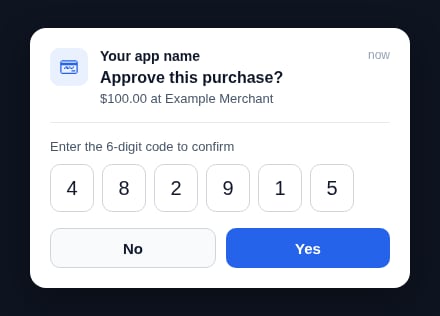
In-app notification — the cardholder reads and enters a 6-digit code
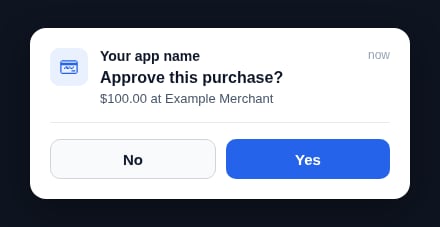
Push notification (OOB) — the cardholder approves or denies
How 3DS authentication works
The exact sequence depends on which option your card program uses.Hosted 3DS flow
When your program uses Hosted 3DS, Rain handles the authentication directly with the network:- The cardholder begins checkout with their card details.
- The merchant initiates a 3DS authentication request.
- The card network (e.g. Visa) routes this request to Rain’s ACS.
- Rain’s ACS triggers the authentication step by sending a one-time code (OTP) to the cardholder via SMS or email.
- The cardholder enters the OTP they received in the authentication iFrame displayed by the merchant.
- Rain’s ACS confirms the authentication outcome back to the card network, allowing the transaction to proceed.
3DS Forwarding flow
When your program uses 3DS Forwarding, Rain forwards the authentication details to your system so you can manage the delivery:- The cardholder begins checkout with their card details.
- The merchant initiates a 3DS authentication request.
- The card network routes this request to Rain’s ACS/Rain.
- Rain sends a webhook to your system containing the OTP and transaction details, enabling you to control the last-mile delivery experience. Rain sends it once, with no retry, and waits up to 60 seconds for your
2xxacknowledgment, so deliver the OTP from a fast path. - You deliver the OTP to the cardholder via one of the supported challenge methods.
- The cardholder enters the OTP they received in the authentication iFrame displayed by the merchant.
- Rain confirms the authentication outcome back to the card network, allowing the transaction to proceed.
Push Notifications (OOB) flow
When your program uses Push Notifications, Rain forwards the challenge to your system, your app shows an approve/deny prompt, and you report the decision back to Rain. There is no OTP to deliver. The steps below show the push notifications method. Biometric authentication follows the same overall pattern — Rain sends the webhook and you report the decision through/3ds — with your app’s biometric check standing in for the push approve/deny prompt in step 5:
- The cardholder begins checkout with their card details.
- The merchant initiates a 3DS authentication request.
- The card network routes this request to Rain/Rain’s ACS.
- Rain sends a webhook to inform your system that a 3DS transaction has been initiated.
- Your app sends a push notification to the cardholder with an approve/deny prompt.
- The cardholder approves or declines in your app.
- You call Rain’s
/3dsendpoint to report the decision, and the transaction is approved or declined accordingly. - You call Rain’s
/challenge-profileendpoint (available soon) to migrate the user’s cards onto the new 3DS flow, once they’re on the correct app version.
Deep dive: 3DS Forwarding
3DS Forwarding is the path to take if you want more ownership over the last-mile delivery of the OTP.Why partners choose Forwarding
- Better deliverability — You’re not limited to SMS or email, so you avoid deliverability gaps.
- Full customization — You control the copy, branding, localization, and channel — SMS, email, WhatsApp, Telegram, or in-app.
- More data and control — You get direct visibility into deliverability rates and challenge volume, rather than relying on Rain to investigate issues on your behalf. You choose which provider you want to use (e.g. Twilio) and you have the power to fix things when they aren’t working. On the flip side, Rain has limited visibility into why 3DS isn’t working or why a transaction failed. If you implement 3DS Forwarding, you own the responsibility to ensure the feature and controls are operating as expected.
What Forwarding requires from you
Forwarding shifts ownership of delivery to you. Before choosing this path, make sure your team is ready to take on:- Owning the messaging provider account (for example, Twilio) for SMS or WhatsApp, or your own email service.
- Ongoing responsibility for deliverability — monitoring failures, retries, and any provider-side issues.
- Owning the challenge/OTP delivery experience, whether that’s an SMS template, email design, or in-app screen.
- Any compliance requirements tied to the channels and jurisdictions you operate in.
How it works
At a high level: the cardholder attempts a purchase, a 3DS challenge is triggered, and instead of being delivered directly to the cardholder, the challenge request is forwarded to you through a webhook. You then deliver the code or prompt to the cardholder through your own channel, and the cardholder completes authentication as usual. See the 3DS Forwarding flow diagram above.Implementation path
Decide your challenge methods
Design your challenge screen (Optional, Enterprise tier)
Send a PNG of your logo
Send your desired challenge screen design
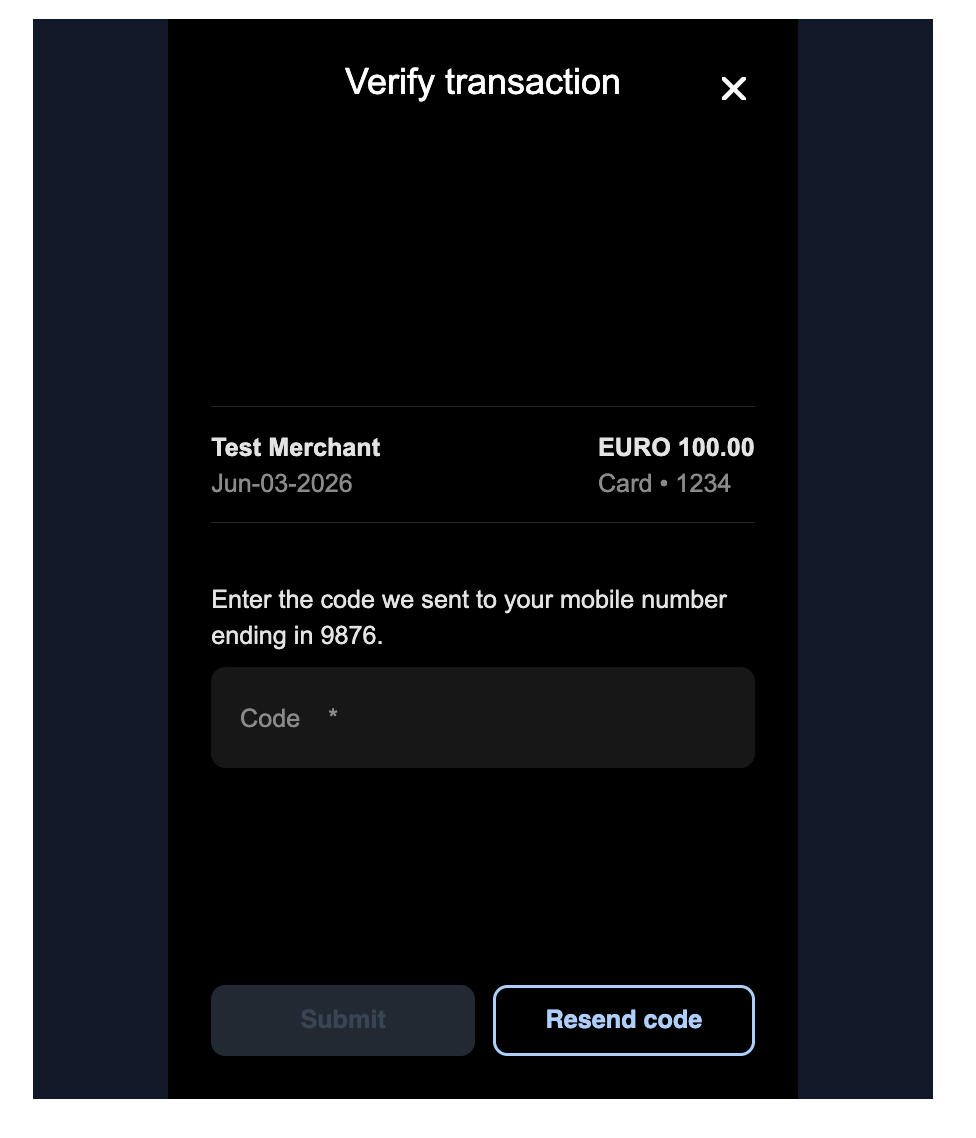
Challenge screen template
Rain sets up your challenge profile
Set up your delivery infrastructure
Confirm your webhook URL with Rain
challenge.requested webhooks. Rain configures this as a webhook URL override in the production environment.Build the integration
challenge.requested webhook and delivers the OTP:- Verify the request is from Rain — compute the HMAC-SHA256 of the request body with your webhook signing key and compare it to the
Signatureheader. See Webhook security and signing. - Parse the challenge —
challenge.oneTimePassword,challenge.timeToLive, plus thetransactionandcarddetails. - Deliver the code — look up the cardholder by
card.idand send the OTP on the channel that matchesdeliveryMethod(SMS, email, WhatsApp…). - Respond
200withstatus: "ok". Optionally include the masked destination —phoneNumberTailfor SMS oremailfor email — so the challenge screen can show the cardholder where the code was sent. See Webhook response below. - Rollout — see below for info
/challenge-profile endpoint (available soon) to migrate a user’s cards onto the new 3DS forwarding flow. While /challenge-profile is being finalized, you can begin building the rest of your integration. See Testing and rollout.See the webhook payload and implementation example below for the full schema and a runnable handler.Test in sandbox
challenge.requested webhook. Confirm your handler responds with a 200.To trigger a challenge, open the Transactions tab in sandbox and select Simulate 3DS challenge. This sends a challenge.requested webhook to your configured endpoint. For the API route, see the 3DS transaction simulator.Once your webhook responds with a 200, you are ready for production testing. Send a screenshot of the 200 response from your webhook history to your account or implementation manager.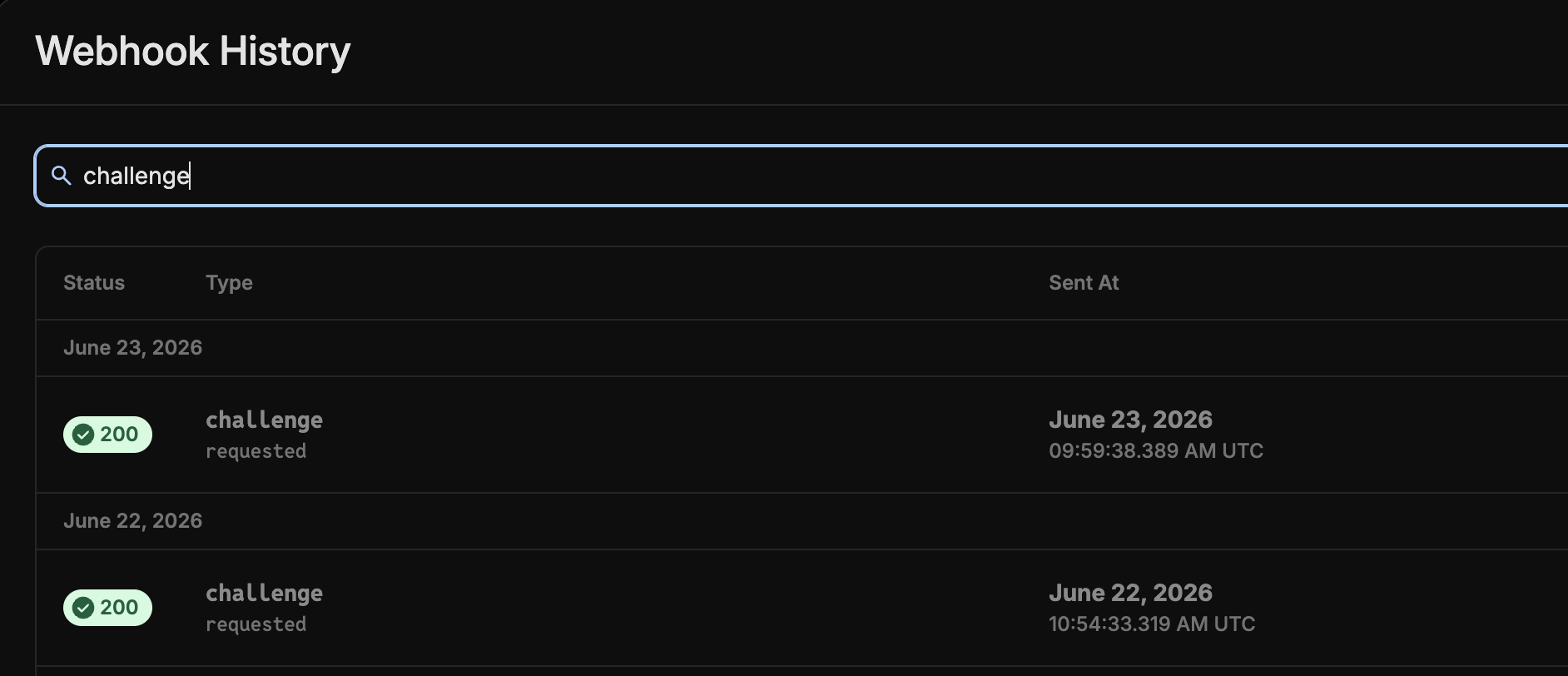
Webhook history showing successful challenge.requested deliveries
Test end-to-end on production cards
Rain enables Forwarding in production
Webhook payload
Rain sends thechallenge.requested webhook to your configured endpoint when a 3DS challenge is triggered. Rain uses this same webhook for both Forwarding and Out-of-Band — the deliveryMethod field tells you which flow a challenge belongs to. SMS, EMAIL, WHATSAPP, or OTHER means you deliver an OTP (Forwarding), while PUSH means you show an approve/deny prompt (Out-of-Band). If your program uses both flows, branch on deliveryMethod. See Webhook payload (Forwarding and OOB) for the full field-by-field schema and example payloads, and the challenge.requested webhook reference for version history.
Webhook response
Reply to the webhook with HTTP200 and a JSON body that confirms delivery. You can also include the masked destination the code was sent to — it’s optional, but a nice touch: it’s displayed on the challenge screen so the cardholder knows where to look (for example, “Enter the code we sent to your mobile number ending in 1234”).
2xx status. Rain reports the missing details to the network so the challenge fails fast, instead of leaving the cardholder waiting on the challenge screen for a code that never arrives.
Implementation example
Deep dive: Out-of-Band (OOB)
This deep dive covers both Out-of-Band methods. Push notifications is the primary, fully supported method. Biometric authentication has limited Rain support and is covered at the end of this section. 3DS Push Notifications are a push notification you send to your cardholder when a merchant requests 3DS. There is no OTP involved.Example push notification
Why partners choose Push Notifications
- Higher deliverability — Since there’s no dependency on Twilio or email, deliverability is controlled directly in the app experience. No OTP is required.
- Works anywhere — No country-level blocks on SMS or email delivery, since 3DS becomes an in-app experience.
- Full customization — You control the copy, branding, and look of the notification.
- More data and control — Like Forwarding, Push Notifications give you direct visibility into deliverability rates and challenge volume, so you’re not waiting on Rain to investigate issues on your behalf. You control how the push notification is sent, which means you can diagnose and fix issues on your own timeline rather than through a support queue. To get the most out of that control, we recommend having your own monitoring and alerting in place.
What Push Notifications requires from you
Push Notifications shift ownership of delivery to you. Before choosing this path, make sure your team is ready to take on:- Owning the push notification implementation. You need to make sure the notification is working as intended.
- Ongoing responsibility for deliverability — monitoring failures, retries, and any provider-side issues.
- Any compliance requirements tied to the channels and jurisdictions you operate in.
How it works
At a high level: the cardholder attempts a purchase, a 3DS challenge is triggered, and the challenge request is forwarded to you through a webhook. Your app then displays an approve/deny prompt, and you report the cardholder’s decision back to Rain through a dedicated endpoint before the challenge expires. There is no OTP involved. See the Push Notifications (OOB) flow diagram above.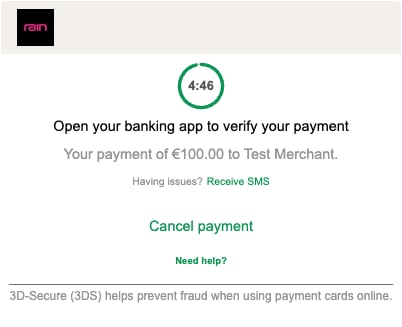
OOB challenge screen — the cardholder approves the payment in your app
Push Notifications implementation path
Decide your challenge methods (Optional, Enterprise tier)
Send a PNG of your logo (Optional, Enterprise)
Rain sets up your challenge profile
Confirm your webhook URL with Rain
challenge.requested webhooks. Rain configures this as a webhook URL override in the production environment.Build the integration
challenge.requested webhook and drives the approve/deny prompt:- Verify the request is from Rain — compute the HMAC-SHA256 of the request body with your webhook signing key and compare it to the
Signatureheader. See Webhook security and signing. - Parse the challenge — the
transactionandcarddetails (there’s no OTP to deliver for push). Persistchallenge.idandtransaction.id— you send both back when you report the decision. - Deliver the prompt — look up the cardholder by
card.idand send a push notification with an approve/deny prompt. When they respond, callPOST /v1/issuing/transactions/3dsto report the decision to Rain. - Respond
200to acknowledge the webhook. - Rollout — see Rollout below for info
/challenge-profile endpoint (available soon) to migrate a user’s cards onto the new 3DS Push Notifications flow.See the webhook payload and decision callback below for the full schemas and examples.Test in sandbox
challenge.requested webhook. Confirm your handler responds with a 200.You cannot test the decision endpoint POST /v1/issuing/transactions/3ds in sandbox. Calling this endpoint in sandbox returns a 4xx error.To trigger a challenge, open the Transactions tab in sandbox and select Simulate 3DS challenge. This sends a challenge.requested webhook to your configured endpoint. For the API route, see the 3DS transaction simulator.Once your webhook responds with a 200, you are ready for production testing. Send a screenshot of the 200 response from your webhook history to your account or implementation manager.Test end-to-end on production cards
Rain enables Push Notifications in production
Webhook payload (Forwarding and OOB)
Rain delivers thechallenge.requested webhook to your configured webhook URL whenever a cardholder needs to complete a 3DS challenge — it is the same webhook for both Forwarding and Out-of-Band. The deliveryMethod field tells you which flow the challenge belongs to: SMS, EMAIL, WHATSAPP, or OTHER means you deliver an OTP (Forwarding), while PUSH means you show an approve/deny prompt (OOB). If your program uses both flows, branch on deliveryMethod. It is delivered like every other Rain webhook — HMAC-SHA256 signed, over HTTPS — and you should acknowledge it with HTTP 200. See Set up webhooks for signing and URL requirements, and the challenge.requested webhook reference for version history.
Unlike most Rain webhooks, challenge.requested is sent synchronously while the cardholder waits: Rain makes one attempt with no retries. Respond within a few seconds — a timeout fails the challenge.
Envelope
body schema
amount field is the transaction amount expressed in the currency’s minor unit (for example, cents). It is always paired with the ISO 4217 currency code. For example, "amount": 1000 with "currency": "USD" means $10.00. Note that this differs from Rain’s transaction webhooks, where amounts are always multiplied by 100 regardless of currency — the two formats diverge for zero-decimal currencies like KRW and JPY.Reporting the decision to Rain
After the cardholder approves or denies, report the decision to Rain by callingPOST /v1/issuing/transactions/3ds.
- Auth — An API key and tenant auth are both required. The key needs the
transactionsAndDisputesresource withwriteaccess. - Access — The endpoint is gated: only tenants enabled for push notifications can call it (others receive
403).
Rollout
The most important part of this integration is ensuring that only users with the correct app version can authenticate via Push Notifications — this implementation is up to you. For example, you could run a worker that listens for cardholders who update their app, or check the user’s app version when you receive thechallenge.requested webhook. Once a user is on a supported app version, use the /challenge-profile endpoint (available soon) to switch their cards between OTP and Push Notifications.
The /challenge-profile endpoint is currently being finalized and isn’t available yet — in the meantime, you can begin building the rest of your integration. We’ll update this page with full endpoint documentation when it ships.
Biometric authentication (limited Rain support)
Biometric authentication is a second OOB method: instead of a push approve/deny tap, your app verifies the cardholder with a biometric check (for example, a fingerprint or face scan on the cardholder’s device) before you report the decision. It uses the same OOB flow as push notifications — Rain sends thechallenge.requested webhook, your app performs the verification, and you report the resulting approve/deny decision by calling the /3ds endpoint. There is no OTP. The implementation steps match the push Push Notifications implementation path above, differing only in how your app collects the cardholder’s decision.
Rain currently has limited support for biometric authentication. Rain does not provide or manage the biometric mechanism — you implement and own it in your app, and Rain receives only the final decision through /3ds. Contact your Rain account manager before planning a biometric integration.
Testing and rollout
- Test before committing. All three paths can be tested on a small number of production cards before a broad rollout — you don’t need to implement your entire card base on day one.
- New cards first. By default, the updated configuration applies only to newly issued cards; existing cards remain on their original authentication path. Migrating active cards is technically possible, but it remains a high-risk manual operation. Rain is developing a streamlined transition tool to automate this process safely, and we’ll share updates as soon as it’s ready.