
Before you start
Overview
| Component | Role |
|---|---|
| Partner App | Displays the Add to Wallet button and integrates the SDK |
| MeaWallet SDK | Handles wallet provisioning logic |
| Apple Pay / Google Pay APIs | Perform tokenization and wallet provisioning |
| Rain | Provides configuration, credentials, and card data |
Supported platforms
- iOS: Apple Wallet
- Android: Google Wallet
Integration checklist
Apple Pay
1
Sign the Apple Pay Program Manager Agreement
You must sign the Apple Pay Program Manager Agreement before starting development. This agreement grants your application access to Apple’s provisioning APIs.Rain will share this agreement with you.
2
Receive configuration file and credentials
MeaWallet will generate:
- SDK configuration file
- Repository credentials
3
Provide Apple app information
Rain will request provisioning entitlements from Apple on your behalf. Do not contact Apple directly.Provide the following to Rain:
This information is required for Apple whitelisting, which authorizes your app to add cards to Apple Wallet. For more information on finding these ids you can go to these docs. The Adam ID and Apple ID tend to be the same.
| Field | Notes |
|---|---|
| Team Name | |
| Team ID | Production |
| Adam ID | Production |
| Apple ID | |
| Bundle ID | Production |
| Country of business headquarters | |
| App framework | React Native or Native |
4
Production activation
- Rain will notify MeaWallet to activate your config to production.
- MeaWallet activates your production provisioning environment.
- MeaWallet promotes your configuration to production.
5
Install the MeaWallet SDK
You implement push provisioning with the MeaWallet SDK. Rain does not provide a separate push provisioning API. Use the SDK that matches your app’s framework.Native iOS (Swift / Objective-C)React Native (cross-platform JavaScript)
6
Implement push provisioning and Wallet Extensions
Wallet Extensions allow users to add cards directly from system wallet flows. Follow the MeaWallet iOS implementation guide for both push provisioning and Wallet Extensions setup.When initializing
MppCardDataParameters, use cardId and cardSecret from Rain, not encrypted card data. See Apple Pay implementation notes for details.7
Enable Card Continuity
Rain handles this step on your behalf. Card Continuity ensures wallet tokens remain valid when card details change, such as expiration updates or card reissuance for lost or stolen cards. Visa’s lifecycle management processes support this, so cards stored in digital wallets update automatically without requiring users to re-add the card.
8
Implement Apple Pay marketing requirements
You must display Apple Pay branding according to Apple guidelines. Rain provides a pre-approved Figma template that satisfies Apple’s marketing requirements. You must use at least one template asset, customized with your branding.You can find the assets in the materials tab on the left.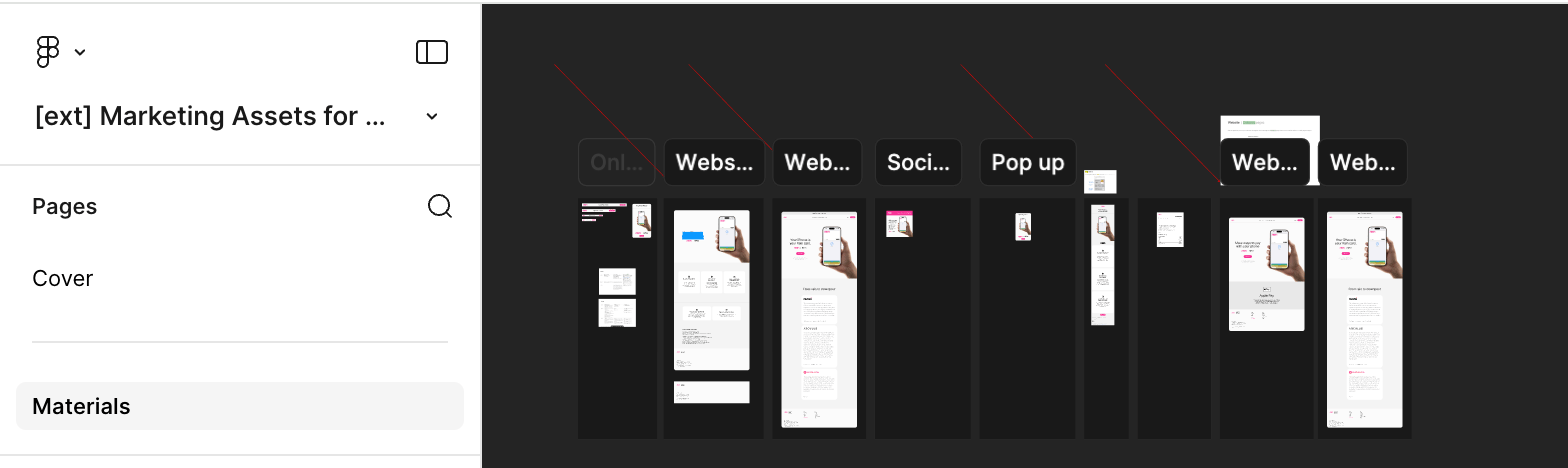
9
Submit validation video
Send Rain a video demonstrating:
- Push provisioning flow
- Wallet Extensions
- Card Continuity behavior
- Apple Pay marketing materials
10
Test in Production
Sandbox testing doesn’t work because Visa doesn’t provide sandbox cards. Test the full provisioning flow using production cards.
Google Pay
1
Request Google push provisioning API access
Rain handles this step on your behalf. Rain submits the allowlist request to Google and may add your app as a sub-entity under Rain’s issuer sponsorship.
2
Receive configuration file and credentials
MeaWallet will generate:
- SDK configuration file
- Repository credentials
3
Review the MeaWallet docs
These docs include any agreements you have to sign.Native Android (Kotlin / Java)React Native (cross-platform JavaScript)
4
Production activation
- Rain will notify MeaWallet to activate your config to production.
- MeaWallet activates your production provisioning environment.
- MeaWallet promotes your configuration to production.
5
Install the MeaWallet SDK
Use the SDK that matches your app’s framework.Native Android (Kotlin / Java)React Native (cross-platform JavaScript)
6
Implement push provisioning
Follow the MeaWallet Android implementation guide.See Google Pay implementation notes for details on credential handling and whitelisting.
7
Test in Production
Sandbox testing doesn’t work because Visa doesn’t provide sandbox cards.
Common integration mistakes
Using Unified push provisioning for Google Pay
Google Pay integrations must use Legacy push provisioning. Rain doesn’t currently support Unified push provisioning.Running the iOS app directly from Xcode
Push provisioning fails if you run the app directly from Xcode. Install the app via TestFlight.Testing with sandbox cards
Visa does not support sandbox push provisioning. Test the full flow with production cards.Implementation notes
Apple Pay
When initializingMppCardDataParameters, use the method that accepts cardId and cardSecret, not encrypted card data. This removes the need for partners to implement their own encryption.
Retrieve these values from the Rain API:
Google Pay
When configuring Google Pay push provisioning, use Legacy push provisioning, not Unified push provisioning. See the Google Pay push provisioning docs. Credential handling: MeaWallet handles key exchange for secure card credentials, not the partner backend. Your mobile app should passcardId and cardSecret (or the encrypted PAN payload). MeaWallet generates the required provisioning payload internally.
Whitelisting issues: Some partners have encountered provisioning errors due to incomplete Google whitelisting. If provisioning fails, confirm your app package name and SHA-256 certificate fingerprint are correctly registered with Google.
Testing
You must test push provisioning using production cards. Visa does not support sandbox provisioning, so you can’t validate the full flow in a development environment.iOS
You must test push provisioning through TestFlight. Provisioning will not work if you run the app directly from Xcode.Integration notes
- No Rain API integration is needed for provisioning itself. Push provisioning runs through the MeaWallet SDK; Rain provides the configuration file, credentials, and card processor details.
- Push provisioning is required, but doesn’t block go-live. Production testing can continue while your implementation is in progress.
- One configuration file covers both wallets. A single MeaWallet configuration supports Apple Pay and Google Pay; tell MeaWallet which platforms you support so MeaWallet promotes the configuration to production correctly.
- Provisioning outcomes surface on the
card.notificationwebhook. Successful tokenizations appear oncard.updated(statusChangeReason: wallet_provisioned), and declined provisioning attempts arrive ascard.notificationevents withreasonCode: PROVISIONING_DECLINEDand a decision reason. Rain doesn’t expose failures inside the Apple or Google flow that never reach a decision. - Sandbox testing isn’t available. Visa doesn’t provide sandbox cards for provisioning, so you must test the full flow in production on a small set of cards.
- Regional availability is Apple’s and Google’s call. If Apple Pay isn’t supported in the user’s region, provisioning fails with an iOS error that Rain can’t override.
Provisioning flow
Troubleshooting
Provisioning blocked by Apple/Google risk engine
Wallet providers operate internal risk engines that may block provisioning attempts. Common triggers include:- Too many wallet add attempts in a short period
- Repeated failed provisioning attempts
- Device flagged by Apple or Google
- Region mismatch between device and card
- Historical wallet fraud signals
Region mismatch
Rain issues all its cards from Puerto Rico. Wallet providers evaluate several signals when determining provisioning eligibility:- Device region
- Apple/Google account region
- SIM country
- IP address
- Risk history